
Two-factor authentication adds a second lock to your account: on top of your password, Napiro asks at every sign-in for a six-digit code shown by an app on your phone. Even someone who knows your password cannot get in without your phone.
It is set up under My account, Security, Two-factor authentication. Your email address must have been confirmed first.
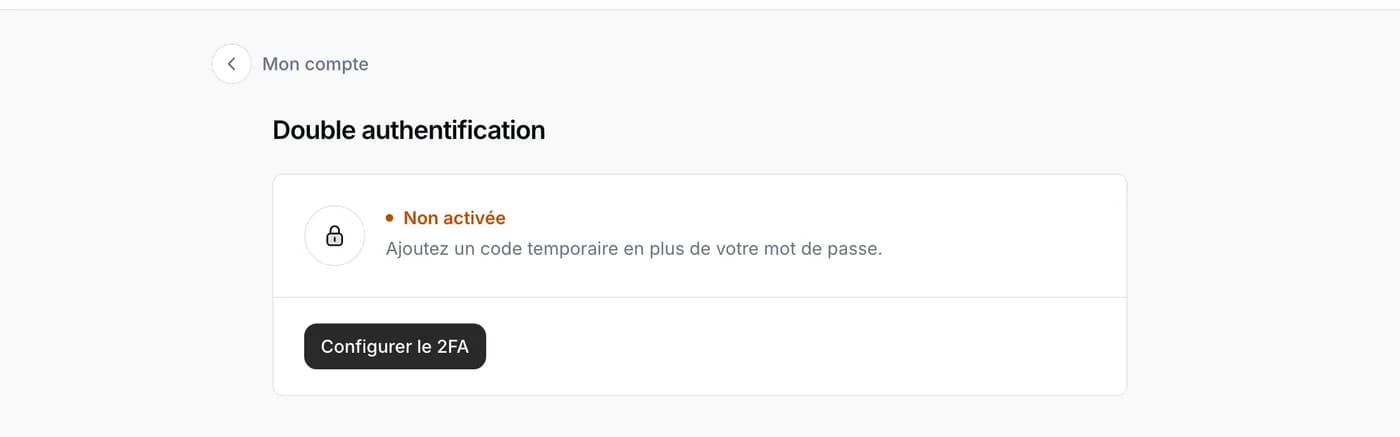
Enable it in three steps
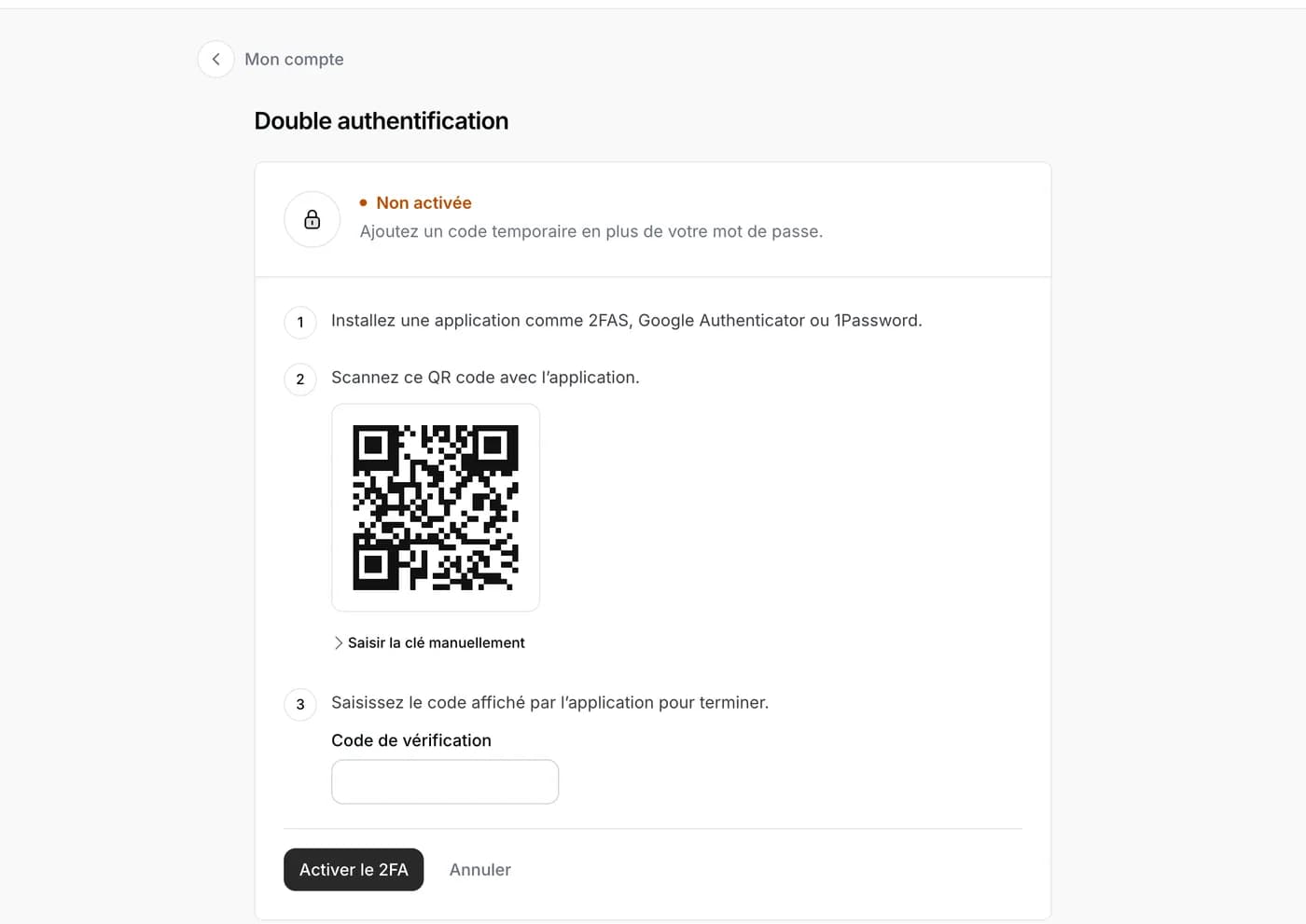
- Install a free authentication app on your phone: 2FAS, Google Authenticator or 1Password, for example.
- On the page, tap Set up 2FA. A black-and-white square appears: open the app on your phone, choose “add” and point the camera at the square. If you are doing everything from the phone, choose “Enter the key manually” and copy the key into the app.
- The app shows a six-digit code. Type it in the Verification code field and tap Enable 2FA. Done.
Day to day
At every sign-in, after your password, Napiro asks for the current code: open the app and copy the six digits. The code changes every thirty seconds, no need to write it down.
If you change phone, disable two-factor authentication before parting with the old one, then enable it again on the new one. To disable, the page asks for a code from the app or your current password.
Phone lost without disabling? Write to us from the site’s Contact page: we will check your identity before removing the second lock.