
Your hours decide which slots your clients can book. They are set under Salon management, then Hours, in three tabs: Typical week, Public holidays, Holidays and exceptions.
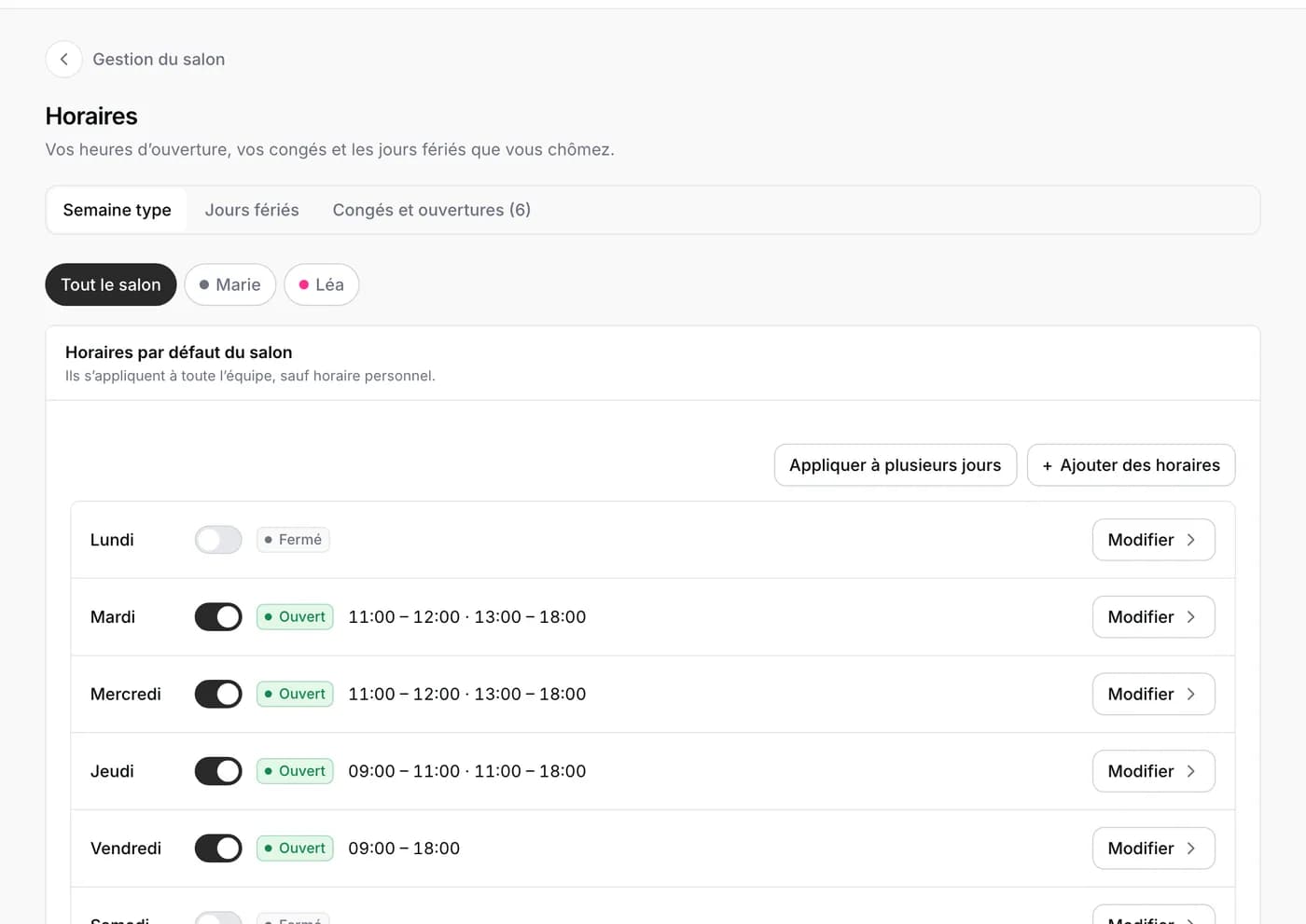
The typical week
For each day, a switch says whether the salon is open, and Edit sets the hours. A lunch break is written as two periods, for example 09:00 to 12:00 then 13:00 to 18:00. Apply to multiple days copies the same hours elsewhere in the week.
At the top, Whole salon sets everyone’s hours. Choose a person’s first name to give her her own hours: she can only be booked within the salon’s hours. Leaving everything empty for her means she follows the salon.
If your week is not always the same, choose alternating weeks or a three-week cycle.
Public holidays
Under Public holidays, tick those on which the salon stays closed. Ticked once, they apply every year.
Holidays, closures and exceptional openings
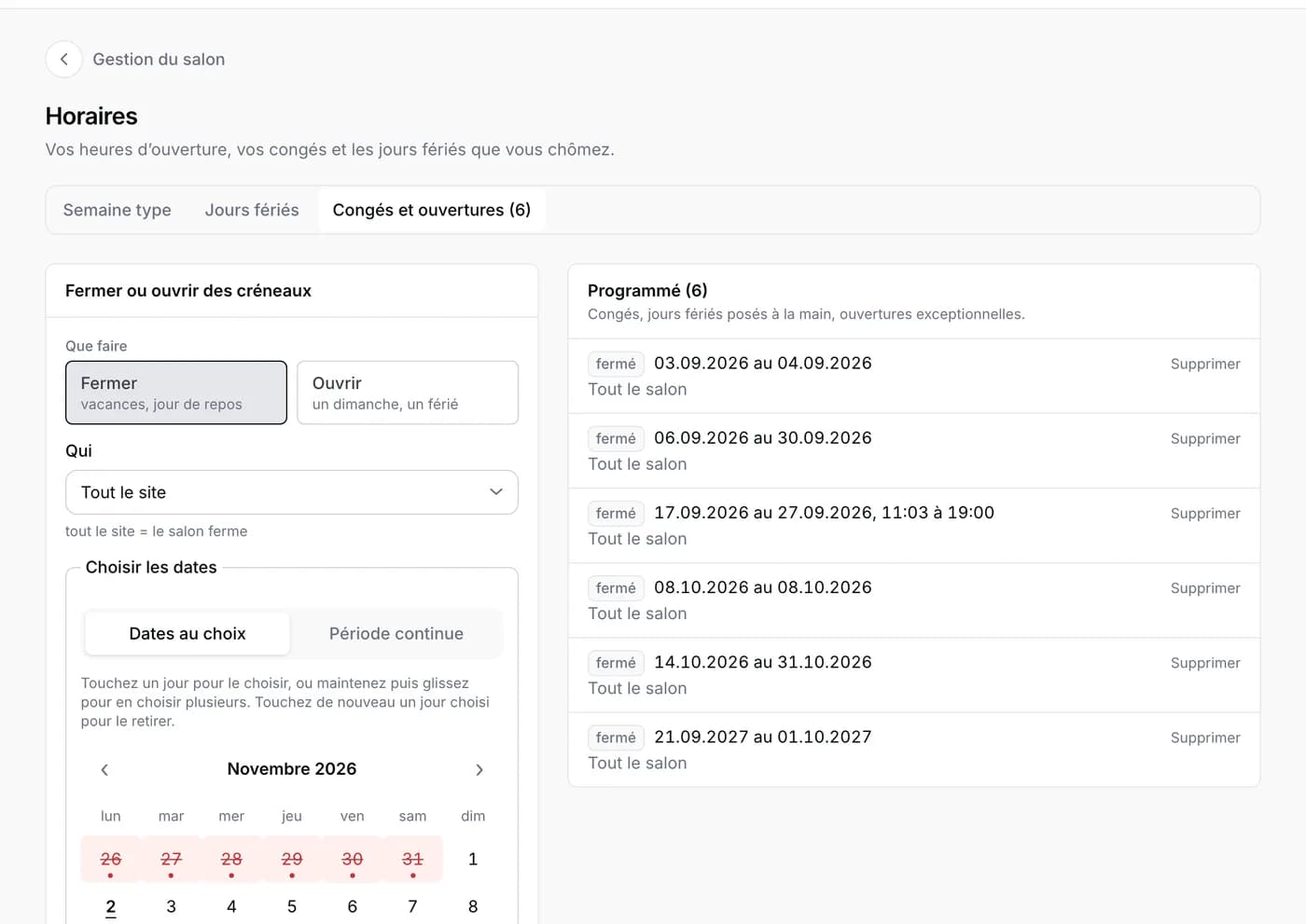
- Open Holidays and exceptions, then choose Close, for holidays or a day off, or Open, for a Sunday or a public holiday you work.
- Choose who is concerned: the whole salon, or one person.
- Choose the dates, one day at a time or a continuous period, and the hours if needed.
- Save: the closure or opening appears in the Scheduled list, from which you can delete it.
What your clients see
Closed slots disappear from your booking page straight away. An appointment already booked is not cancelled by a closure: have a look at your calendar on those dates and move or cancel it yourself.